Getting to know the interface
Get to know the Bpanda interface: the home page as the entry point to your Process Space, the main menu on the left and the user menu at the top right.
Get to know the Bpanda interface: the home page as the entry point to your Process Space, the main menu on the left and the user menu at the top right.
For how to find your way around the process hierarchy and the organization, see Getting to know the process hierarchy and organization; for what an individual process page offers, see Getting to know the process page.
Home page
The home page gives you an overview of relevant personal information and direct access to the process map.
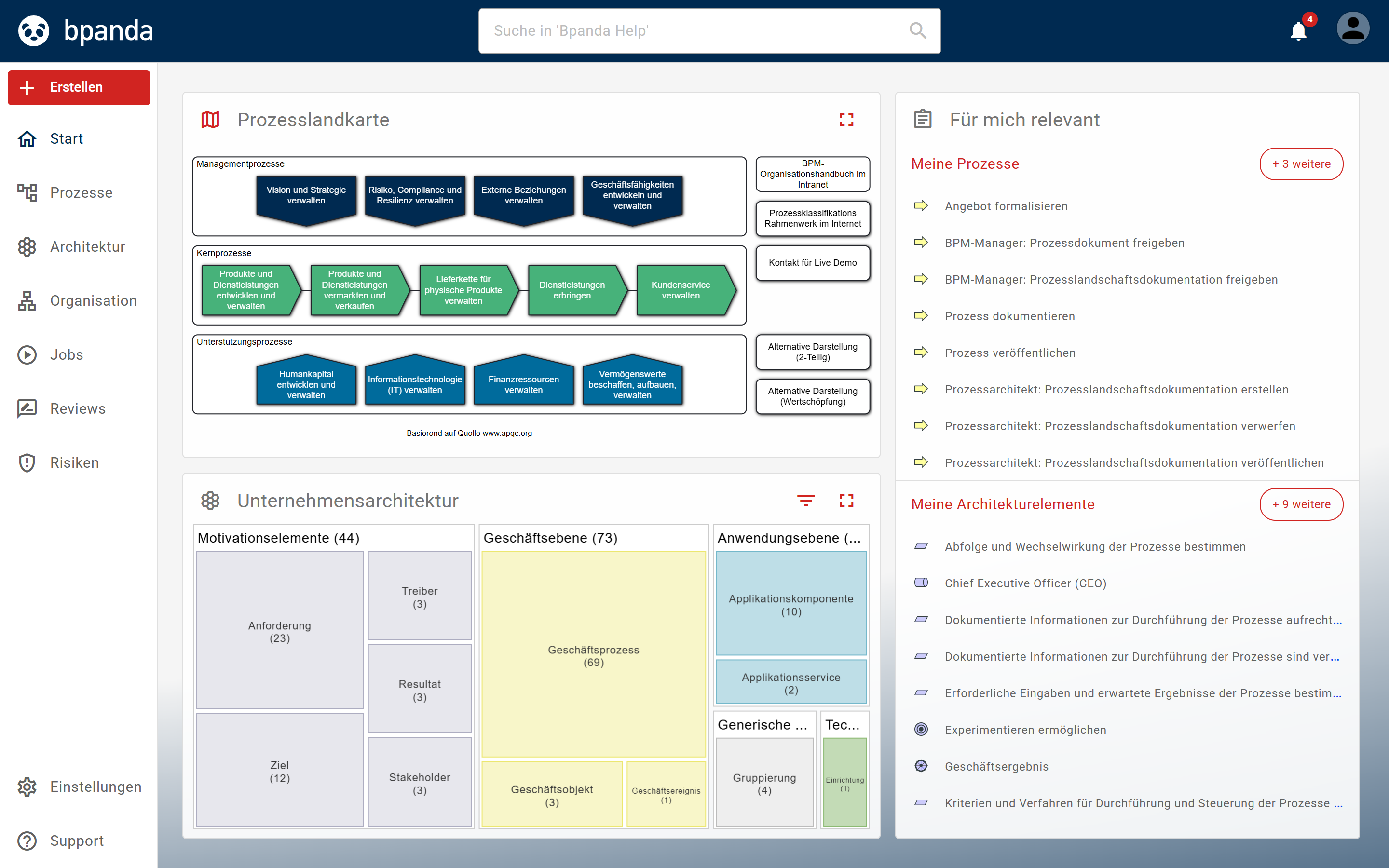
In the middle, the home page shows your process map and, below it, your enterprise architecture. The BPM Manager defines under Settings > Manage Process Space on the Customize tab under Home page view whether only the process map, only the enterprise architecture or both are displayed one below the other.
On the right, the Relevant for me area brings together all the information that concerns you. Each area shows the first entries and, with + n more, the number of remaining ones. Clicking the heading opens the respective page.
- Current tasks shows your tasks, e.g. your pending Jobs, risk analyses or the completion of Reviews; the heading opens the My tasks page
- Drafts* shows the drafts you have created and saved in the Modeler
- My processes shows the processes to which you have been assigned as Process Owner, Process Participant or Process Contributor; the heading opens the Relevant processes page
- My architecture elements* shows the architecture elements you are responsible for
- Favorites shows the processes you have marked as a favorite
- Recently viewed shows the content you viewed most recently
The home page also serves as the entry point to the process hierarchy. Starting from the topmost process map, you can reach each of your processes and call up all the functions available to your role. At a particular level of the process hierarchy, a process map graphically displays the hierarchy elements assigned at that level.
The enlarge icon takes you to the process hierarchy, where the overview of the assigned process maps and processes is displayed for the process maps and where the tree structure of the process hierarchy can be expanded.
* Role-dependent functions
Main menu
The main menu is permanently visible on the left and is used to call up all the general functions available to you through your role.

The Create button is located above the main menu. Use it to create new content. Which content is offered depends on your role: Architecture for an architecture element, Process for a process draft in the Modeler (where you can also import a BPMN file as a draft), Process map for a new process map.
-
Home calls up the home page with the process map, the enterprise architecture and the information relevant to you
-
Processes opens the process hierarchy. Authorized users choose in the submenu between Process hierarchy and Manage Processes*; the latter provides actions for assigning processes to a process map, for assigning roles for one or more processes and for hiding and showing processes, among others
-
Architecture shows your enterprise architecture: on the Evaluations tab the activated evaluations, on the Published tab all published architecture elements, including the applications, and on the Drafts tab* your elements that have not yet been published
-
Organization shows organizational units and organizational roles and how they are linked to each other and to processes
-
Jobs shows your jobs: the jobs to be taken over, the active ones and the completed ones
-
Reviews* shows the reviews of process revisions to which you have been assigned by the Review Owner
-
Risks* opens the Risk Management page with functions for BPM Managers and Risk Managers for the overview and evaluation of risks and opportunities of the processes
-
Support opens a submenu
- Help calls up this help
- Contact establishes contact with Bpanda Support, e.g. for an error report or your suggestions
- System info shows information about your Bpanda installation, e.g. the version
-
Settings opens a submenu with the role-dependent items
- Manage Process Space* provides BPM Managers with functions for user administration and for customizing the interface
- Manage account* allows Account Managers to call up the account administration (Customer Accounts for MID Products – CAMP) for the Process Space with the administration of licenses, Account Managers, users and groups (introductory video)
* Role-dependent functions
You reach your tasks, drafts, processes, favorites and recently viewed content not via the main menu, but via the areas on the right of the home page.
User menu
A profile is managed centrally in the account for every Bpanda user. You can change your personal data in your user profile.
You open the user menu at the top right via your profile picture, next to the notifications. Your profile picture, your name and your email address appear above the commands.
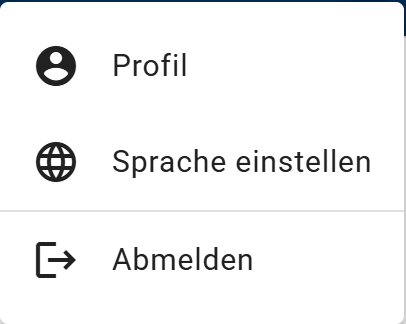
The following commands are available in the user menu:
-
Profile
Shows your name, your email address, your roles and your organizational units. Here you can upload your profile picture. Manage profile opens the account administration in a new window; there you change personal details such as name and language, provided they do not come from a directory service such as Entra ID, and under Account security your password.
-
Set language
The system language and the content language can be set independently of each other.
The system language is used to display all menu entries, headings, descriptive texts, etc. that belong to the Bpanda user interface and are not related to the process data or other imported data.
The content language is used to display processes, process maps and organizational units, provided they have been translated. Otherwise, the content is displayed in the modeling language or in the system language.
-
Switch Process Space
Only appears if you have access to several Process Spaces. Here you switch the Process Space.
-
Log out
This command logs you out of Bpanda immediately. The login dialog appears.
See also: Getting to know the process hierarchy and organization, Getting to know the process page, Navigating in the Process Space